
Practical Steps to Resolve Ledger Wallet Pairing and Sync Issues
USB Connection Glitches (Wired Pairing Problems)
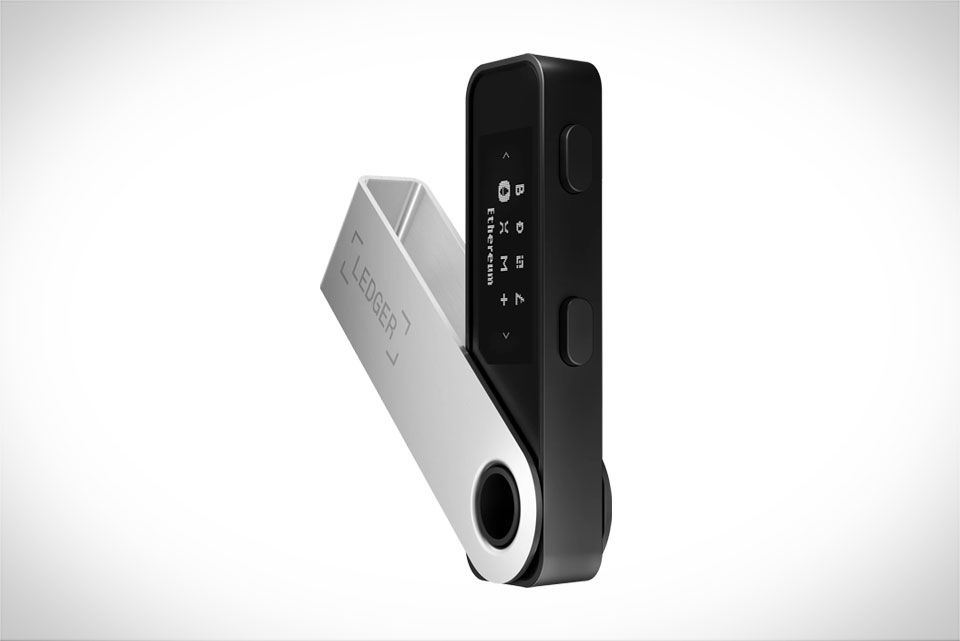
Many new Ledger users assume any USB cable works, but charging-only cables lack data lines entirely—this is the top cause of wired pairing failures. Last month, a crypto community member messaged saying his Nano S wouldn’t show up in Ledger Live; after a quick check, I learned he used the cable from his wireless earbuds. The first fix here is swapping to the original Ledger USB cable or a certified data-transfer cable. Next, skip USB hubs—they often cause signal interference—and plug directly into your computer’s port, preferably a USB 2.0 port, as some 3.0 ports have compatibility gaps with older Ledger models. If that fails, restart both your Ledger device and laptop/desktop, then reopen Ledger Live. For Windows users, head to Device Manager to check if the Ledger appears under “Universal Serial Bus devices”; if not, install official Ledger drivers from the website (avoid third-party tools—they trigger more issues than they solve).
Bluetooth Pairing Failures (Mobile Device Issues)
Mobile pairing struggles are common, especially when multiple Bluetooth devices clutter the area. A few weeks ago, I helped my sister pair her Nano X to her iPhone 14; the connection kept dropping mid-pair. We first turned off Bluetooth on all nearby gadgets—her iPad, smart watch, and even a neighbor’s laptop (I was surprised that mattered). Next, we restarted both the Ledger (hold the left button for 10 seconds to power off fully, then reboot) and her phone. For Android users, don’t forget to enable location services—some models require this for Bluetooth pairing to work. If still stuck, forget the Ledger from your phone’s Bluetooth settings, then redo the pairing from Ledger Live Mobile. Also, check your Ledger’s battery: Bluetooth needs more power than USB, so a dying battery can cut the connection abruptly.
Software Sync Errors (Desktop App Mismatches)
Sync issues between Ledger Live and your device usually stem from outdated app versions or corrupted cache. Last week, a Reddit user posted their balances wouldn’t update even after successful pairing. The fix starts with updating Ledger Live to the latest version—old versions often have bugs with new Ledger firmware or blockchain data. If sync fails post-update, clear the app’s cache: on Windows, go to %appdata%\Ledger Live and delete the cache folder; on Mac, navigate to ~/Library/Application Support/Ledger Live/cache. After clearing, restart Ledger Live and reconnect your device. Also, skip VPNs during sync—some VPNs block Ledger’s server connections, causing delays or failed syncs. A stable internet connection is non-negotiable here, as Ledger Live communicates directly with blockchain nodes.
Firmware Compatibility Snags (Device Outdated or Misconfigured)
Outdated or corrupted firmware breaks connections, especially when updating Ledger Live. A colleague tried updating his Nano S last month, but mid-update he unplugged the device to grab coffee—this caused firmware corruption, leading to pairing failures. To fix this, use the official Ledger Updater tool to re-flash firmware, but only if your device has at least 50% battery (low battery during re-flash can brick the device). Before updating, confirm compatibility: newer Ledger Live versions don’t support very old firmware, so update Ledger Live first, then the firmware. Never use third-party firmware tools—they’re risky and can lead to lost funds. If re-flashing doesn’t work, check Ledger’s support page for model-specific fixes; most connection issues from firmware are resolved with these official steps.







