
A practical guide to connect Ledger to trusted crypto tools
Pre-Pairing Prep: Compatibility & Safety Checks
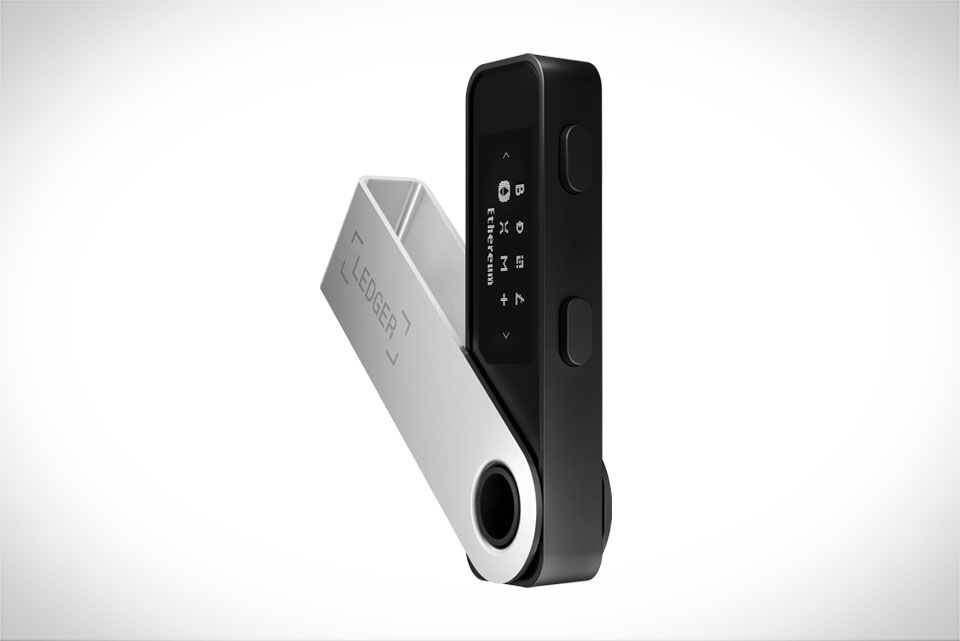
Before you dive into pairing, there are two non-negotiable steps to avoid headaches later. First, make sure your Ledger device runs the latest firmware—you can update this via Ledger Live on desktop or mobile; outdated firmware often causes connection failures or missing features, like NFT support in some apps. Second, only download third-party wallet apps from official sources: app stores, the developer’s official website, or verified browser extensions. I once had a friend download a fake MetaMask extension from a random link, which almost stole his seed phrase backup (thankfully he caught it before entering details). Also, confirm the third-party app explicitly supports Ledger—popular options like MetaMask, Rabby, and Zapper list Ledger as a compatible hardware wallet on their docs. One more tip: ensure your Ledger isn’t paired with any other app during setup, as this can cause connection conflicts.
Pick a Third-Party App That Fits Your Workflow
Not all third-party wallets work smoothly with Ledger, so choose based on what you need to do. If you’re trading on decentralized exchanges (DEXes), MetaMask is a go-to because it integrates with Uniswap and SushiSwap seamlessly. For NFT management, Rabby Wallet’s Ledger pairing lets you view and transfer collections without switching platforms. Avoid niche apps with little community feedback—they might have unpatched security holes. A small crypto forum recently warned users about a lesser-known wallet claiming Ledger support, but testing showed it exposed transaction data to third parties. Stick to apps with active development and a track record of secure integrations; this reduces the risk of data leaks or unauthorized access.
Step-by-Step Pairing for MetaMask (Most Common Use Case)
Let’s walk through the process with MetaMask, the most widely used third-party wallet. First, unlock your Ledger device and open the relevant app—for Ethereum, that’s the Ethereum app. Confirm this app is updated too (check via Ledger Live). Next, open MetaMask on your desktop or mobile. On desktop, click “Connect Hardware Wallet”; on mobile, tap the profile icon and select “Connect Hardware Wallet”. Choose “Ledger” from the list, then follow prompts to connect via USB (desktop) or Bluetooth (mobile). On your Ledger, you’ll see a “Allow Connection” prompt—tap both buttons to approve. Once connected, MetaMask will display your Ledger accounts; pick the one you want to use, and you’re ready to transact. I did this last week for a client who wanted to trade on Uniswap; the process took under two minutes, as long as both devices had stable connections.
Post-Pairing Security Checks to Protect Your Assets
Even after pairing, quick checks prevent mistakes that could cost you. First, verify your account address matches what’s on your Ledger: in MetaMask, click the account name to see the full address, then cross-check it with the address shown on your Ledger’s Ethereum app. A mismatch means you connected the wrong account—fix that immediately. Second, enable “Require confirmation on Ledger” in your third-party app settings; this forces manual approval for every transaction, adding a critical layer. A few months back, I saw a Reddit thread where a user forgot this step and sent 0.5 ETH to a wrong address because they didn’t confirm on their Ledger. Third, log out of the third-party app when done, especially on shared devices. These small steps keep your crypto safe without extra hassle.







