
Simple steps to set up your hardware wallet on Windows 11
Pre-Connection Prep for a Smooth Setup
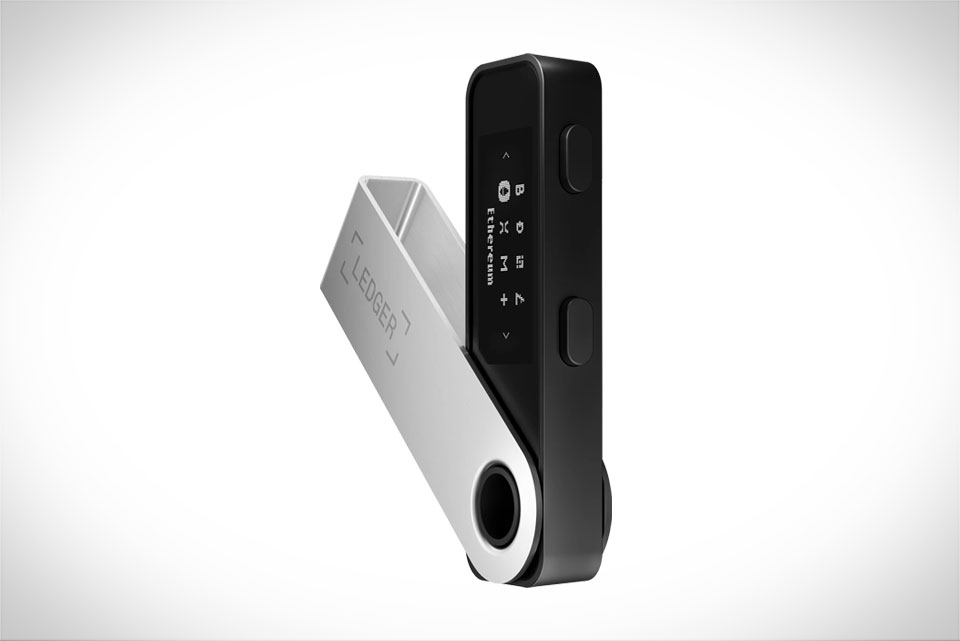
Before you plug anything in, there are a few quick checks to avoid common hiccups. First, make sure your Windows 11 runs at least version 21H2—older builds might not support the latest Ledger Live features, which can block connection. Next, confirm your Ledger Nano S Plus is properly initialized; if it’s new, you should have already set a 4-8 digit PIN and written down your 24-word recovery phrase (never skip this step, as it’s the only way to restore your crypto if the device breaks). I learned this the hard way when I forgot to update my Windows 11 build once, leading to 20 minutes of troubleshooting before I realized I needed a quick system update. Also, temporarily disable overzealous antivirus or firewall settings—some Windows security tools flag Ledger Live’s USB access as suspicious, even though it’s safe. Skip USB hubs or extension cables too; they often cause power drops that disconnect your Ledger mid-setup.
Installing the Official Ledger Live App on Windows 11
You should only download Ledger Live from the official Ledger website—third-party sites often host modified versions with malware, which puts your crypto at risk. Head to ledger.com/live, select the Windows download option, and save the installer file to your desktop. Once the download finishes, double-click the installer; you’ll see a User Account Control (UAC) prompt—click “Yes” to let the app make changes to your system, as it needs access to USB devices and system settings. After installation, open Ledger Live. The app will automatically check for firmware updates for your Ledger Nano S Plus; follow the on-screen prompts to install any available updates—outdated firmware is one of the top reasons connection fails. Last month, my cousin tried skipping this update and spent an hour trying to connect until he realized the firmware was two versions old.
Physically Connecting Your Ledger Nano S Plus to Windows 11
Now for the actual connection—this part is straightforward if you follow the right steps. Take the USB-C cable that came with your Ledger Nano S Plus (never use a random cable, as some don’t support data transfer, only charging) and plug one end directly into a free, USB-C or USB-A port on the back of your Windows 11 desktop or laptop. I’ve found rear ports work better than front ones because they get more consistent power, so I always use those to avoid interruptions. Once plugged in, turn on your Ledger Nano S Plus by pressing both left and right buttons at the same time. The device’s screen will light up, and you’ll see a prompt to enter your PIN. Use the left and right buttons to scroll through numbers, and press the middle button to confirm each digit of your PIN. After entering the full PIN, your Ledger will display a message confirming it’s connected to Ledger Live on your Windows 11 PC—this is the green light you’re looking for.
Verifying Connection and Fixing Common Issues
After connecting, take a minute to confirm everything works properly. In Ledger Live, click the “Device” tab on the left sidebar—you should see your Ledger Nano S Plus’s serial number and a list of installed crypto apps (like Bitcoin or Ethereum). If you don’t see this, don’t panic: try unplugging the USB cable, waiting 10 seconds, and plugging it back in, or switch to a different rear USB port. If the problem persists, open Windows Device Manager (right-click the Start menu, select “Device Manager”), expand “Human Interface Devices,” and look for any entry with “Ledger” in the name. If there’s a yellow exclamation mark next to it, right-click and select “Update driver”—Windows will automatically search for the correct driver. Another quick fix: close Ledger Live, restart the app, and re-enter your PIN on the Ledger device. Last week, my neighbor had this exact issue and it took him less than two minutes to fix by updating the driver.







