
Practical solutions to get your crypto hardware wallet working smoothly
Device Not Recognized by Computer
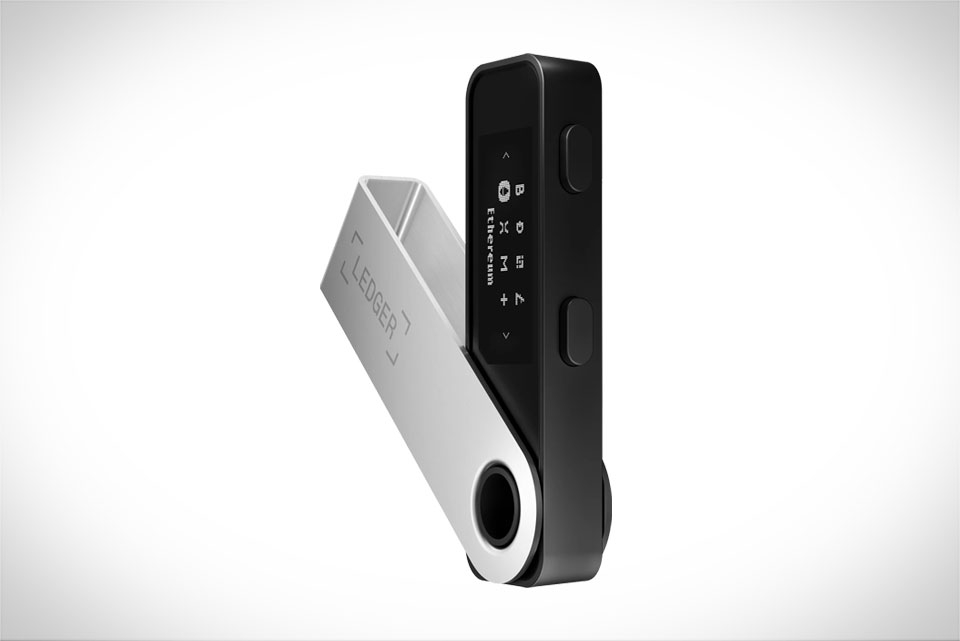
If your Ledger Nano S Plus won’t show up on your computer, don’t panic—this is one of the most frequent issues users face, and it’s usually easy to fix. A few months ago, my roommate tried setting up his new Nano S Plus for the first time, but his laptop didn’t detect the device at all. He’d grabbed a random USB cable from his drawer, not realizing it was only for charging, not data transfer. The first thing to check is always the USB cable: use the one that came with your wallet, as third-party cables often lack the data lines needed for connection. Next, try different USB ports—avoid USB-C hubs if possible, as they can cause compatibility issues; a direct port on your laptop or desktop works best. If that doesn’t help, update your computer’s operating system or the Ledger Live app, since outdated software can block device recognition. For Windows users, check device manager to see if the Ledger is listed under “Portable Devices”; if not, reinstall the Ledger Live drivers. On Mac, make sure you’ve granted Ledger Live permission to access your device in System Settings. Simple tweaks like these usually resolve the problem within a few minutes.
Transaction Confirmation Delays
Transaction delays can be frustrating, especially when you’re trying to move crypto quickly, and many users mistakenly blame their Nano S Plus for this. Most of the time, delays are due to network congestion, not the wallet itself. Last month, I tried confirming an Ethereum transfer to a friend, and it took over 15 minutes to go through—when I checked the blockchain, the mempool was full of pending transactions, so miners were prioritizing higher gas fees. But sometimes, wallet settings can contribute to delays too. If your transaction is stuck, first verify that your Nano S Plus is synced with the latest firmware (outdated firmware might not handle network updates properly). Next, adjust the gas fee: in Ledger Live, you can choose from low, medium, or high priority fees. For busy networks like Bitcoin or Ethereum, medium is usually safe, but high will get your transaction processed faster. Avoid confirming transactions during peak hours, like weekends when more people are trading, as this increases network load. If the delay lasts over an hour, double-check that you entered the recipient address correctly—typos here can make the transaction hang or go to the wrong wallet, though the Nano S Plus should prompt you to verify the address before confirming, so this is less common.
Failed Firmware Updates
Firmware updates are important for security and new features, but they can go wrong if you’re not careful. A friend of mine had a bad experience when his laptop died mid-update—his Nano S Plus was stuck on a black screen, and he thought he’d lost all his crypto. The good news is that Ledger devices are designed to recover from failed updates easily. Before attempting any firmware update, make sure your Nano S Plus is charged to at least 50% battery; low power during the process is a top cause of failures. Use a stable internet connection, and never disconnect the device from your computer or remove it from Ledger Live while the update is in progress. If the update does fail, don’t panic—hold both buttons on the Nano S Plus for 10 seconds to force a restart, it should enter recovery mode automatically. From there, follow the official Ledger steps to reinstall the firmware, which only takes a few minutes. Avoid using third-party update tools, as these can be unsafe and may damage your device. Always back up your recovery phrase before updating, just as an extra precaution, though recovery mode doesn’t erase your funds if you follow the right steps.
Unresponsive Buttons or Screen Glitches
Physical issues with the Nano S Plus are rare, but they do happen, especially if the device is handled roughly or exposed to dirt. I once spilled a small amount of water on my Nano S Plus when I was setting up a coffee table, and the right button stopped working for a few days. I gently cleaned the button area with a dry microfiber cloth (no liquids, to avoid further damage) and left it to air out, and it worked fine after that. If your buttons are unresponsive, first restart the device: hold both buttons for 10 seconds until the screen goes black, then release. This fixes temporary freezes that can make buttons act up. For screen glitches like flickering or lines, check if there’s any debris stuck around the edges of the screen or buttons—use a soft, dry cloth to wipe the area carefully. If the glitches persist, don’t try to take the device apart; contact Ledger support, and make sure you have your 24-word recovery phrase ready to verify your ownership. In most cases, these physical issues are minor and easy to fix without needing to replace the device, as long as you handle it gently.







