
Boosting decentralized app safety with hardware wallet pairing
Core Compatibility Between Ledger and MetaMask
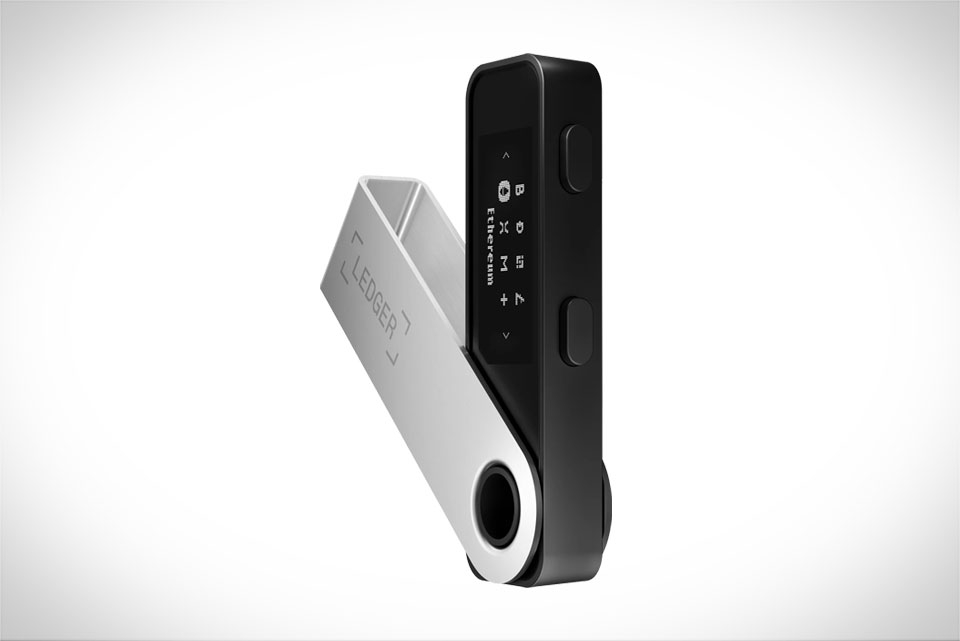
MetaMask, the top software crypto wallet, and Ledger, the leading hardware wallet provider, are built for seamless DApp access. Unlike software wallets that store private keys on internet-connected devices, Ledger keeps keys in an offline, secure chip called the Secure Element—this is the backbone of their partnership. MetaMask acts as a bridge, letting users connect Ledger to web-based DApps without exposing sensitive keys. For example, when using Uniswap to swap Ethereum, MetaMask handles the DApp interface while Ledger manages the critical signature step, so your private key never touches the compromised internet.
Step-by-Step Setup for Daily DApp Use
Setting up the pair is straightforward, but precision avoids errors. First, update your Ledger Nano S or X to the latest firmware via Ledger Live—this fixes compatibility glitches with MetaMask’s recent updates. Next, install MetaMask on Chrome, Firefox, or Edge. Open MetaMask, click the top-right profile icon, select “Connect Hardware Wallet,” then choose “Ledger” from the list. Connect Ledger to your computer via USB or Bluetooth, unlock it with your PIN, and open the required blockchain app (like Ethereum) on the Ledger device. Once MetaMask detects your accounts, select one for DApps. For a test, go to Uniswap’s official site, click “Connect Wallet,” pick MetaMask, approve the connection, and you’re ready to trade.
Security Features That Strengthen DApp Access
The integration’s greatest strength is enhanced security, rooted in Ledger’s offline key storage. Every DApp transaction (token swap, NFT purchase, etc.) sends a request to your Ledger, not MetaMask directly. You must physically confirm the transaction on Ledger’s screen—this stops hackers from triggering hidden actions, even if your browser is compromised. If you accidentally land on a fake Uniswap phishing site, the fraudulent request won’t appear on Ledger’s real screen, so you won’t sign it. Ledger never shares private keys with MetaMask or DApps; all key operations happen on the isolated hardware, immune to malware and phishing attacks. This is why many users prefer this setup over pure software wallets, even if their laptop is hacked, their keys stay safe.
Best Practices and Common Fixes
To keep the integration reliable, follow key best practices. Always use official apps: download MetaMask only from its official site, and Ledger firmware exclusively via Ledger Live to avoid fake, data-stealing versions. Update both wallets regularly—firmware adds new security layers and DApp compatibility. If you face connection issues, first confirm your Ledger is unlocked and the relevant blockchain app is open. Closing and reopening MetaMask or restarting your browser often fixes glitches. Avoid linking too many Ledger accounts to MetaMask, as this slows detection. If a DApp fails to connect, verify its domain is legitimate (check for HTTPS and verified badges) before troubleshooting further. These steps ensure smooth, secure DApp interactions every time.







