
Step-by-step guide to resolve common Ledger transaction errors
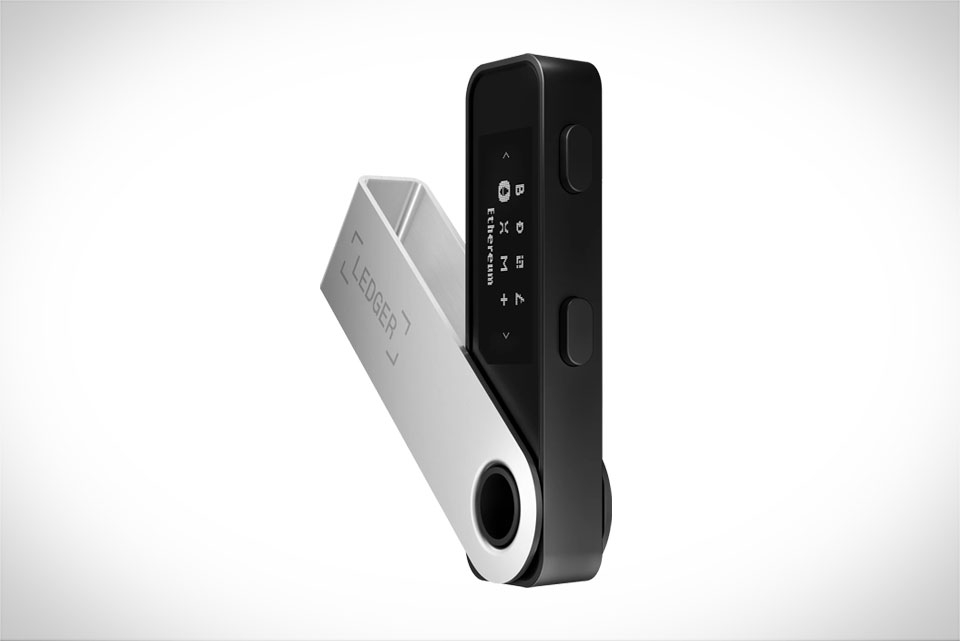
Most transaction rejections start with unstable connections between Ledger Live (desktop or mobile) and your Ledger device. For example, if you’re using a Ledger Nano S or X, a loose USB cable (or weak Bluetooth for mobile users) can break communication mid-transaction. I once tried sending ETH from my Ledger Nano S and got a rejection because my USB cable was frayed; switching to a new, certified USB 2.0 cable fixed it immediately. Also, ensure your Ledger device is unlocked and not in sleep mode before initiating the transaction – I’ve seen users forget to enter their PIN, leading to automatic rejection. For Bluetooth users, disable other nearby Bluetooth devices that might interfere, or toggle Bluetooth off and back on on both your Ledger and phone. If your connection still feels unstable, try moving closer to your router for desktop Bluetooth setups, as signal distance can also cause drops.
Verify Sufficient Funds and Transaction Details
A common mistake leading to rejections is underestimating network fees or not having enough crypto to cover both the sent amount and gas fees. For instance, when sending USDT on the Ethereum network, you need enough ETH in your Ledger account to pay for gas, even if transferring USDT. Last month, I tried sending 500 USDT but only had 0.002 ETH left – gas fees that time were around 0.003 ETH, so the transaction was rejected immediately. Double-check the recipient address too; sending crypto to a wrong address won’t just get rejected, it’s permanently lost. Always cross-verify the address on your Ledger device’s screen (not just the Ledger Live app) to confirm it matches, as typos or phishing links can cause errors. Also, confirm the network is correct: if sending BSC tokens, don’t use the Ethereum network in Ledger Live, that will definitely trigger a rejection.
Update Ledger Firmware and App to Latest Versions
Outdated software is a frequent culprit of transaction rejections, as old versions often have bugs that prevent proper network communication or signature verification. Ledger regularly releases firmware updates for its devices (Nano S, X, Plus) and app updates for Ledger Live to fix these issues. For example, a few months back, an older Ledger Live version had a bug that caused ERC-20 token transactions to fail during peak network times; updating to the latest 2.60.x version fixed that for many users. To update, connect your Ledger device to Ledger Live, go to Settings > Device, and follow prompts to install the latest firmware. For Ledger Live, check for updates in the app menu (top left on desktop, or Settings in mobile) and install pending updates before retrying transactions. I always update both device and app after major network upgrades like Ethereum’s Merge to avoid compatibility issues.
Resolve Token-Specific or Smart Contract Interaction Errors
DeFi swaps, NFT mints, or smart contract interactions often have unique rejection errors not covered by basic checks. For example, when minting an NFT on Polygon, you might get a rejection because the token isn’t added to your Ledger Live app, or the smart contract has a too-low gas limit. To fix this, go to Ledger Live’s Accounts tab, add the specific token (like Polygon USDC or a new NFT collection’s token) manually, ensuring you select the correct network. For smart contracts, if using Ledger Live’s built-in swap feature, confirm the contract is verified (Ledger shows a checkmark for trusted contracts). Last week, I tried swapping on SushiSwap via Ledger and got a rejection; adding the Sushi token manually and increasing the gas limit from 21000 to 50000 fixed the issue. Also, avoid third-party tools that bypass Ledger’s signature process, as they can cause rejections or security risks.







