
As cryptocurrency adoption continues to surge across global markets, spanning casual retail investors to dedicated Web3 builders, more users are shifting from desktop-only wallet management to on-the-go access that lets them track portfolios, validate transactions, and interact with decentralized apps (dApps) no matter where they are. Hardware wallets like the Ledger Nano series—including the entry-level Nano S, the upgraded Nano S Plus, and the Bluetooth-enabled Nano X—have long been lauded as the gold standard for private key security, but many users underestimate how seamlessly these devices can integrate with both Android and iOS mobile operating systems, unlocking a full suite of Web3 tools without compromising the offline, air-gapped security that makes hardware wallets indispensable for protecting digital assets.
Before initiating any connection between a Ledger Nano device and a mobile phone, there are several critical pre-requisite steps to ensure both compatibility and security. First, users should confirm their mobile device meets the minimum operating system requirements: for iOS devices, version 13 or later is required, while Android devices need to run Android 8.0 or higher to support both Bluetooth and USB On-The-Go (OTG) connections. Next, users must download the official Ledger Live mobile application exclusively from the Apple App Store or Google Play Store, as third-party app repositories or unvetted links often host phishing apps designed to steal seed phrases or trick users into signing malicious transactions. It is also wise to verify that the Ledger Nano device is running the latest firmware version, which can be checked and installed via the desktop version of Ledger Live first to avoid interruptions during mobile setup. For users with a Ledger Nano S or Nano S Plus, which lack built-in Bluetooth functionality, a compatible OTG adapter is required: Android users typically need a USB-C to USB-C or USB-C to USB-A OTG adapter (depending on their phone’s port), while iOS users will need an Apple MFi-certified Lightning to USB-C or Lightning to USB-A adapter to establish a stable wired connection.
The most popular mobile connection method is for the Ledger Nano X, which features built-in Bluetooth Low Energy (BLE) that eliminates the need for cables or adapters entirely. To begin, open the Ledger Live mobile app and tap the “Settings” icon in the bottom right corner, then select “Connect a device” from the drop-down menu. Choose “Ledger Nano X” from the list of supported devices, then power on your Nano X by holding down the left button until the Ledger logo appears, and enter your custom PIN code to unlock the device and access its main dashboard. Back in the Ledger Live app, tap “Continue” to start the Bluetooth pairing process; the app will scan for nearby Nano X devices, and once your device’s unique name appears on the screen, tap it to initiate pairing. A six-digit pairing code will appear on both your mobile phone and your Ledger Nano X screen—always verify that these two codes match exactly before confirming the pairing on both devices, as this step protects against man-in-the-middle attacks that could intercept Bluetooth signals and attempt to spoof a legitimate connection. Once paired, the Ledger Live app will automatically sync with your device, displaying your full portfolio balances, transaction history, and access to the Ledger App Catalog, where you can install blockchain-specific apps (such as Ethereum, Bitcoin, Solana, or Polygon) directly to your Nano X from your mobile device without needing to plug into a desktop computer.
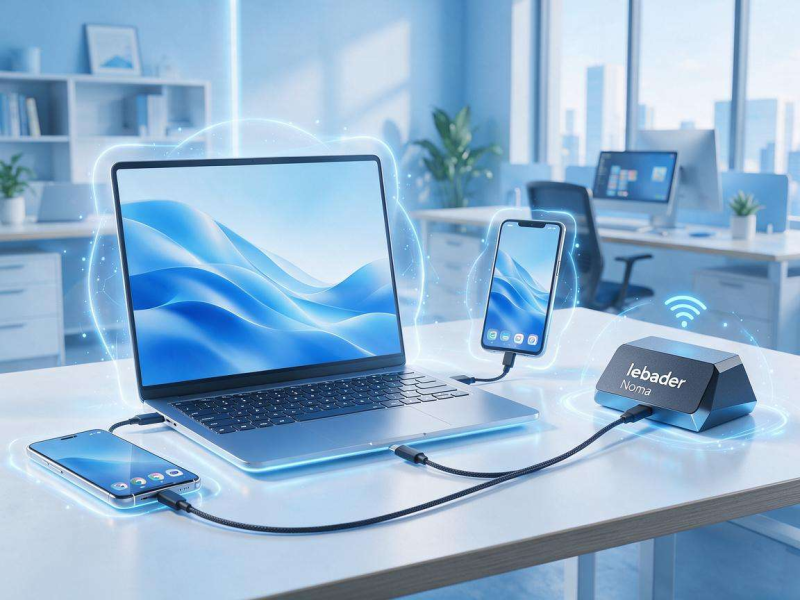
For users with a Ledger Nano S or Nano S Plus, the wired connection process is equally straightforward once you have the correct OTG adapter. Start by plugging one end of the OTG adapter into your mobile phone’s charging port, then plug the USB-C cable that came with your Ledger Nano device into the other end of the adapter, and connect the remaining end to your Ledger Nano S or S Plus. Power on the Ledger device and enter your PIN code to unlock it, then open the Ledger Live mobile app. The app should automatically detect the connected hardware wallet within a few seconds; if it does not, navigate to the “Settings” menu, select “Connect a device,” and choose “Ledger Nano S” or “Ledger Nano S Plus” from the list, then follow the on-screen prompts to complete the connection. It is important to note that some Android devices may require users to enable OTG functionality in their system settings before the connection will work, and iOS users must use MFi-certified adapters to avoid compatibility issues, as uncertified accessories are often blocked by Apple’s strict security protocols to prevent unauthorized access to device data.
Once your Ledger Nano device is connected to your mobile phone, you can access a wide range of Web3 functionalities beyond simple portfolio tracking. One of the most useful features is deep integration with WalletConnect, an open-source protocol that lets hardware wallets connect to decentralized applications without exposing private keys to the mobile device or the dApp itself. To use WalletConnect, open the dApp you want to interact with (such as Uniswap for token swaps, OpenSea for NFT trading, or Aave for decentralized lending) in your mobile browser or dedicated dApp app, select “Connect Wallet” and choose “WalletConnect” from the list of options, then scan the displayed QR code with your Ledger Live app or copy the connection link into Ledger Live’s WalletConnect section. The app will prompt you to confirm the connection on your Ledger Nano device, and once approved, you can interact with the dApp normally—every transaction or signature request will be sent directly to your hardware wallet, where you can review the full details (including recipient address, transaction amount, gas fees, and smart contract functions) on the device’s tamper-proof secure display before approving or rejecting the request. This setup ensures that even if your mobile phone is compromised by malware or a sophisticated phishing attack, your private keys never leave the Ledger Nano’s secure element chip, so your digital assets remain fully protected.
Despite the reliability of Ledger’s mobile integration, users may occasionally encounter connection issues that can be resolved with simple troubleshooting steps. For Bluetooth connections with the Nano X, the most common fix is to toggle Bluetooth off and on again on your mobile device, then restart both the Ledger Live app and the Nano X device itself. If the problem persists, you can forget the Nano X from your mobile device’s Bluetooth settings and re-pair it from scratch, making sure no other devices (such as your desktop computer or tablet) are currently connected to the Nano X’s Bluetooth signal, as Ledger devices only support one active Bluetooth connection at a time. For wired connections, first try replacing the USB cable or OTG adapter, as frayed cables or uncertified adapters are responsible for the majority of wired connection failures; you should also ensure that the Ledger device is unlocked and on its main dashboard, as the app cannot detect devices that are locked or running a specific blockchain app mid-operation. If you are still having trouble, clearing the Ledger Live app’s cache (on Android) or offloading and reinstalling the app (on iOS) can often resolve hidden software glitches that interfere with device detection.
No matter which connection method you use, there are several critical security best practices to follow when using your Ledger Nano with a mobile device. First and foremost, always verify every transaction and signature request on your Ledger Nano’s physical display before approving it—never rely solely on the information shown on your mobile phone, as malicious apps or compromised dApps can display fake transaction details to trick users into signing harmful actions like draining their wallet. Second, never share your 24-word recovery phrase with anyone, and never enter it into any mobile app or website, as Ledger support will never ask for your recovery phrase, and any request for the phrase is a guaranteed scam. Third, avoid using unsecure public Wi-Fi networks when making large or sensitive transactions, as public networks can be targeted by attackers who may attempt to intercept connection requests or deploy fake dApp phishing sites, though it is important to note that your private keys remain secure even on public networks thanks to the Ledger’s offline, air-gapped storage. Finally, if your mobile phone is lost or stolen, your assets remain completely safe as long as your Ledger Nano device and recovery phrase are secure, as the private keys are never stored on the mobile device itself, and a thief would need both your Ledger device and your PIN to access your funds.
As the Web3 ecosystem continues to shift toward mobile-first experiences, with new dApps, layer-2 blockchains, and digital identity tools launching for mobile users every month, the ability to connect a secure hardware wallet like the Ledger Nano series to a mobile device has become increasingly essential. For years, users have had to choose between the convenience of mobile crypto access and the ironclad security of hardware wallets, but Ledger’s seamless mobile integration eliminates that tradeoff, giving users the freedom to manage their assets, interact with dApps, and explore the Web3 space on their own terms, without putting their private keys at unnecessary risk. Whether you are a casual investor checking your portfolio on your morning commute, a Web3 builder testing new dApps on the go, or a long-term crypto holder who wants maximum security without sacrificing accessibility, connecting your Ledger Nano to your mobile device unlocks a new level of flexibility that makes managing digital assets simpler and more convenient than ever before.







