
Step-by-Step Tutorial to Secure Your First Crypto Assets
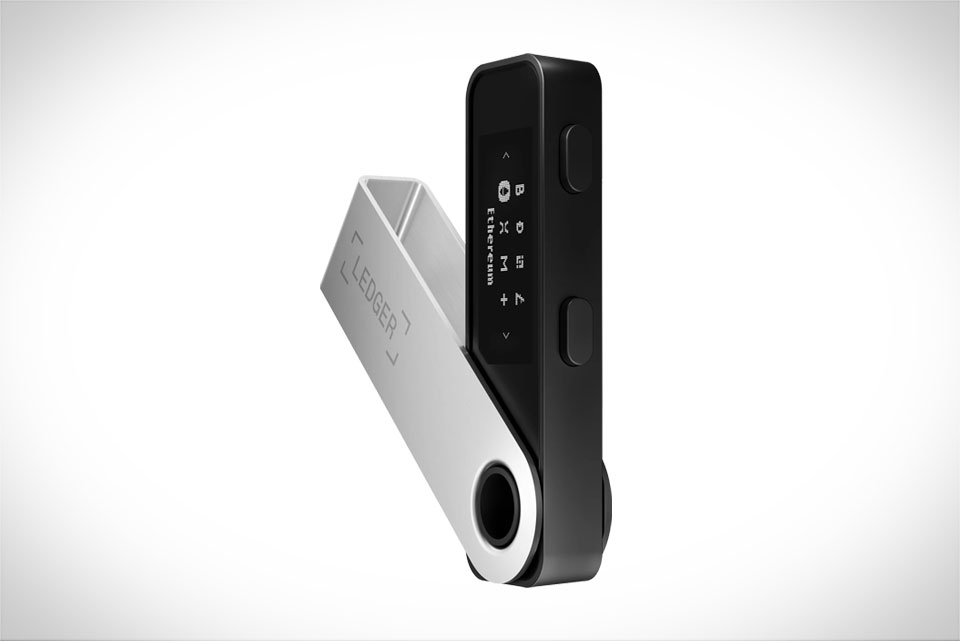
If you’re new to crypto, the first critical lesson is that storing coins on a centralized exchange is risky—hacks and fraud happen regularly, so a hardware wallet like Ledger is your safest bet. This tutorial walks you through every step, no prior crypto experience needed, with practical tips to avoid common mistakes.
Unboxing and Initial Device Verification
We’ll use the Ledger Nano S as our example here, since it’s beginner-friendly and affordable. Start by unboxing your device: check the sealed plastic wrap on the box first—if it’s broken or tampered with, send it back immediately. Scammers often sell opened devices preloaded with malicious software to steal crypto. Pull out the Ledger and turn it on; a brand-new device will show a clear “Welcome” screen, not a login prompt or existing account. Double-check the serial number on the device’s back matches the one printed on the original box—this is a quick way to confirm you have an authentic product. I once helped a friend who bought a secondhand Ledger; his device had a pre-set PIN, and he lost all his crypto because the previous owner retained control. Don’t skip this step—authenticity is non-negotiable.
Creating Your 24-Word Recovery Phrase
This is the most important step in setting up your Ledger, so take your time. The device will generate a unique 24-word recovery phrase (seed) that’s the only way to retrieve your crypto if you lose or break your Ledger. Never store this phrase digitally—no photos, no notes on your phone, no cloud saves. Ledger provides a small paper sheet, but many experienced users prefer a metal seed backup (like Ledger Steel) to protect against fire or water damage. Write each word in the exact order the device shows; mixing up even one word will make your seed useless. When prompted, the Ledger will ask you to re-enter three random words from your phrase to confirm you wrote them correctly. I made a small mistake here when setting up my first Ledger: I wrote the 17th word as the 16th, and had to redo the entire setup. Double-check every word before moving on.
Pairing with the Official Ledger Live App
Next, download the Ledger Live app only from the official Ledger website—avoid random links in search results or third-party app stores, as these could be malicious. Install it on your computer (Windows, Mac, or Linux) or smartphone. Connect your Ledger to your device using the original USB cable from the box; cheap generic cables might not work, or could be designed to steal data. Open Ledger Live, select “Set up a new device,” and follow the prompts to enter your PIN (the 4-8 digit code you created earlier) on the Ledger. Wait for the app to sync completely—don’t interrupt the process, as this could corrupt your device. Once paired, you’ll see your Ledger’s dashboard, which shows basic info like connection status and battery level (for Nano X models).
Adding Your First Crypto Asset
Now it’s time to add the crypto you want to store. For beginners, Bitcoin or Ethereum are the easiest to start with. In Ledger Live, click the “Accounts” tab, then select “Add account.” Choose your desired crypto from the list (Bitcoin is usually at the top), and follow the on-screen prompts. When you get your receiving address, confirm it on both the Ledger device and Ledger Live app—scammers can create fake apps that show a different address on your phone than what’s actually sent to the device. For example, when I added my first Bitcoin account, Ledger Live showed an address that looked right, but checking the Ledger screen revealed it was different. I had to re-do the address step, which saved me from sending coins to a thief. Once you confirm the address is correct, send a small test amount (like $50 worth of Bitcoin) to make sure everything works. If that goes through, you’re all set to store your crypto safely.







