
Step-by-step guide for secure, error-free crypto transactions
Pre-Transfer Prep: Verify Your Ledger Setup & Network
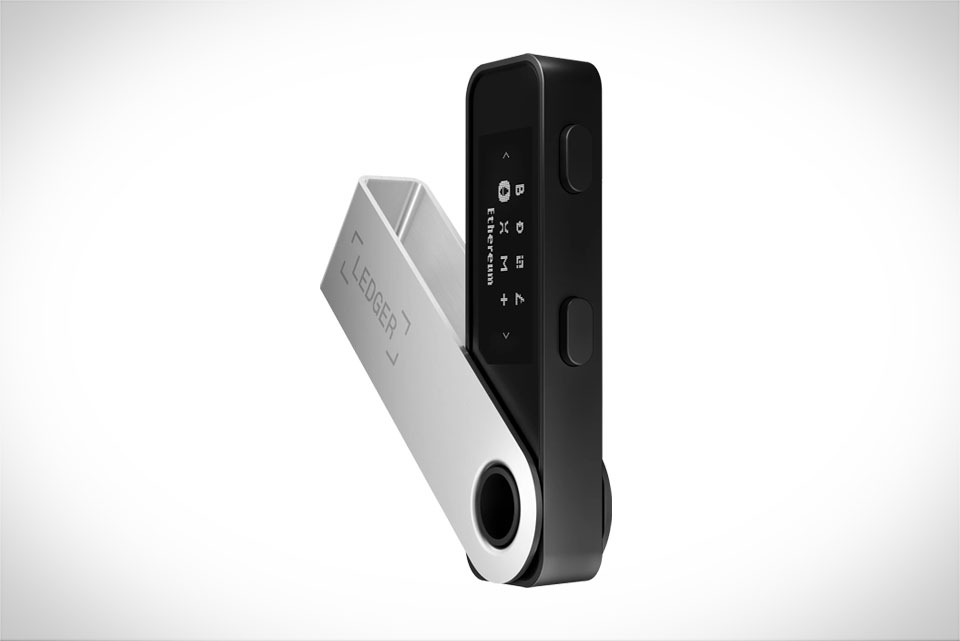
Before initiating any Bitcoin transfer, take 10 minutes to confirm your Ledger device is working correctly. I once worked with a new crypto user who tried to send BTC through a half-updated Ledger Nano S, and the transaction got stuck for three days—they had to reach Ledger support to resolve it. First, plug your Ledger into a trusted personal computer; avoid public Wi-Fi or shared devices, as these pose security risks. Open the Ledger Live app, navigate to the “Settings” tab, and check for pending firmware updates. Outdated firmware can cause transfer failures or leave your private keys vulnerable, so install any updates immediately. Next, confirm Ledger Live is connected to Ledger’s official node, not a random third-party node—you can adjust this in the app’s network settings to ensure stable, secure connectivity. Never connect your Ledger to a device with untrusted software, as this could expose sensitive data.
Double-Check Recipient Addresses Before Sending
This is the single most critical step to avoid losing Bitcoin, and it’s where most new users make costly mistakes. Last month, a close friend sent 0.5 BTC to a Ledger address that looked nearly identical—he missed one character, and the funds are now permanently unrecoverable, since Bitcoin transactions are irreversible. To prevent this, always copy your Ledger BTC address directly from the Ledger Live app or your Ledger device’s physical screen, never from text messages, emails, or untrusted websites. When you paste the address into the send field, cross-reference it twice: once in Ledger Live, then on your Ledger’s display. For example, if your address starts with “bc1q”, verify every subsequent character matches exactly—even a single wrong digit sends your BTC to a malicious or unrelated wallet. Avoid scanning QR codes from unknown sources; only scan QR codes shown on your Ledger device’s official screen to avoid redirection to fake addresses.
Use SegWit for Lower Fees & Faster Transactions
SegWit (Segregated Witness) is a Bitcoin protocol upgrade that reduces transaction fees and speeds up confirmation times, and Ledger wallets fully support it. If you use a legacy Bitcoin address, your fees will be 2-3 times higher than SegWit addresses, and confirmations may take longer. Switching to a SegWit address on Ledger is simple: in Ledger Live, go to the “Accounts” tab, select your BTC account, click “Receive”, and choose “SegWit” as the address type. For context, sending 1 BTC via SegWit might cost $1-2, while a legacy transfer could run $5-8—this small change adds up over time. Also, set the transaction fee to “Priority” in Ledger Live; this ensures your transaction is included in the next block, confirming in 10-20 minutes instead of hours. I exclusively use SegWit for all my Ledger transfers; it’s a low-effort tweak that saves money and cuts down on waiting time.
Post-Transfer: Confirm the Bitcoin Arrives Safely
After sending, don’t assume the BTC is received—take 5 minutes to verify the transaction. First, check your Ledger Live “Accounts” tab for updated balances; if it doesn’t refresh immediately, wait 15 minutes, as blockchain sync takes time. Next, cross-check the transaction on a trusted Bitcoin explorer like Blockstream.info: paste your Ledger BTC address into the search bar, and locate the transaction ID of your send. Confirm the amount matches, and the status shows “Confirmed” (usually after 6 confirmations, which take about an hour). If you don’t see the transaction after two hours, check your Ledger’s connection—sometimes Ledger Live loses sync with the blockchain. If it’s still missing, contact Ledger support with your transaction ID (never share your private keys, as support teams will never request them). I once had a transaction delayed by network congestion; checking the explorer helped me confirm it wasn’t a failed send, just a temporary hold.







