
Step-by-step walkthrough to master crypto portfolio tracking & control
Setting Up Ledger Live & Linking Your Ledger Device
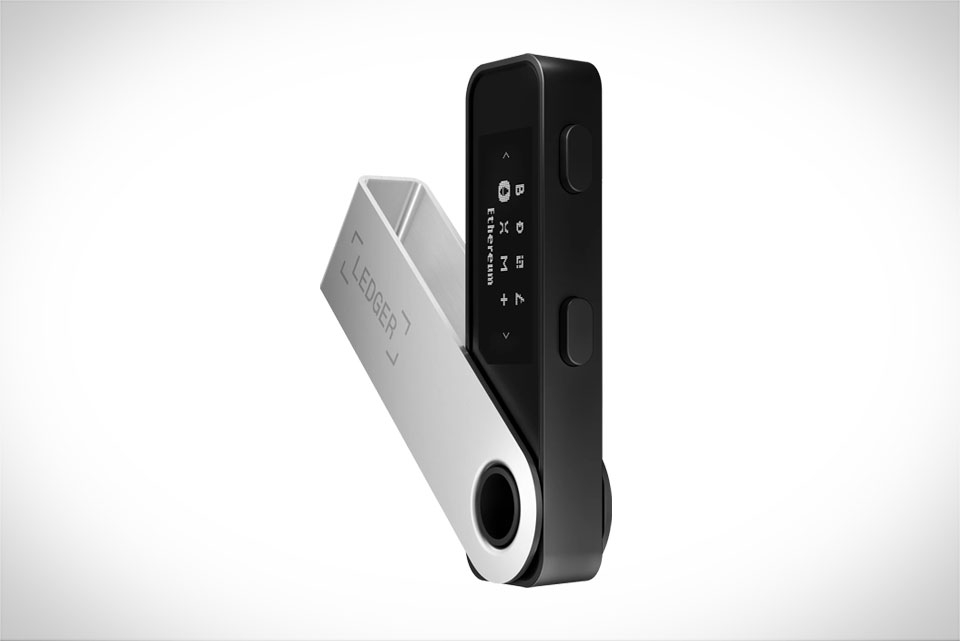
To start, download Ledger Live from the official website for your operating system—Windows, Mac, or Linux. Once installed, open the app and select "Get Started" then connect your Ledger hardware wallet (like Nano S or Nano X) to your computer via USB. Unlock your device and navigate to the "Settings" menu to confirm your firmware is up to date; outdated firmware can cause sync issues. I did this last week when setting up my new Nano X, and it took only 2 minutes to update. Next, pair your device with the app by following the on-screen prompts, making sure to match the code shown on both your Ledger and Ledger Live to avoid connection errors that could delay accessing your funds.
Adding Crypto Assets to Your Portfolio
Once set up, adding assets is straightforward. Click the "Accounts" tab then "Add Account" to search for cryptocurrencies like Bitcoin, Ethereum, USDC, or smaller altcoins. Be careful to select the correct blockchain network—for example, I once accidentally added Polygon-based ETH instead of mainnet ETH, which made my balance show 0 until I corrected the network. You can also import external wallet addresses if you want to combine holdings from MetaMask or other wallets into one unified dashboard. After selecting an asset, name your account (like "Personal BTC" or "Trading ETH") to keep things organized, then hit "Add Account" to see it populate your portfolio overview instantly.
Tracking & Analyzing Your Portfolio Performance
The core of Ledger Live’s value is its intuitive portfolio tracking tools. The main dashboard shows a total balance across all your assets, plus a clear breakdown of each coin’s percentage of your total holdings. You can view historical performance over 1 week, 1 month, or 1 year—for instance, my portfolio grew 14% in the past 3 months, with Bitcoin contributing 80% of that gain thanks to its recent rally. There’s also a price alert feature: set a target price for any asset, and you’ll get a push notification when it hits that number. I used this recently to sell half my Ethereum when it reached $3,200, locking in a small profit before a minor market dip hit its value.
Securing & Managing Your Crypto Transactions
Ledger Live prioritizes security for all actions, so never skip verifying details on your hardware device when sending crypto. When you initiate a withdrawal, the app will show the transaction details on your screen, and you must confirm the amount and recipient address directly on your Ledger device to prevent fraud. I learned this the hard way when a phishing link tried to trick me into sending Bitcoin to a fake address; Ledger Live blocked the transaction because the address didn’t match the one I confirmed on my Nano S. You can also export transaction history for tax purposes—just go to "Settings" then "Export" to get a CSV file of all your sends and receives, which saved me hours when filing my crypto taxes last year by eliminating manual entry.







