
Practical tips for Linux users to set up and work with Ledger Live
Pre-Installation Checks for Linux Users
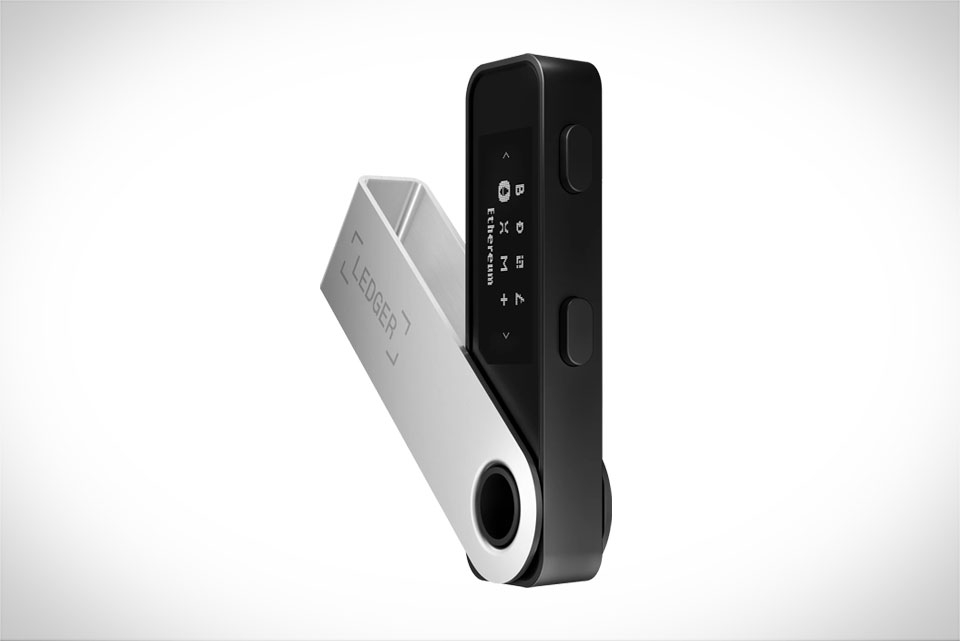
Before installing Ledger Live, a few quick checks will save you from common headaches. First, confirm your distribution is supported: Ledger works on Ubuntu, Fedora, Mint, Arch, and most other major distros, but always cross-check the official site for updates—older LTS versions like Ubuntu 20.04 might need extra repo tweaks. Next, ensure key dependencies are installed: libusb, udev, and curl are non-negotiable for hardware wallet connectivity. On Ubuntu, run sudo apt install libusb-1.0-0-dev udev curl; on Fedora, use sudo dnf install libusb-devel udev curl. Skipping this step often leads to your Ledger device not being detected later, a mistake many new Linux users make.
Step-by-Step Installation Process
The easiest way to install Ledger Live on Linux is via the AppImage, which avoids package conflicts. Start by downloading the latest AppImage from Ledger’s official website—this works for any distro. Once saved to your Downloads folder, open the terminal, navigate there with cd ~/Downloads, then make the file executable: chmod +x Ledger-Linux-x86_64-x.x.x.AppImage. Run it by typing ./Ledger-Linux-x86_64-x.x.x.AppImage or double-clicking the file (if your file manager supports AppImages). For Arch users, the AUR has a ledger-live package—use an AUR helper like yay to install it, but always verify the source. Last month, I installed Ledger Live on Fedora 38 using the AppImage method, and it worked flawlessly without dependency issues, unlike a failed deb package attempt earlier.
Essential Linux-Specific Usage Tips
Once set up, these tweaks make Ledger Live more secure and convenient. First, configure udev rules to avoid needing sudo every time you plug in your Ledger. Create a file at /etc/udev/rules.d/50-ledger.rules, paste the official Ledger udev rules from their docs, then reload udev with sudo udevadm control --reload-rules and sudo udevadm trigger. This lets you connect your Ledger without root access, a big security win. Next, add a desktop shortcut: for GNOME, go to Settings > Keyboard > Custom Shortcuts, then point to your AppImage path. My friend who uses Linux Mint did this and no longer has to enter his sudo password repeatedly, speeding up his crypto management. Also, stick to cold wallet practices—avoid public networks, keep your system updated, and never share your recovery phrase.
Troubleshooting Common Linux Issues
Even with setup, you might face small problems. The top issue is Ledger not being detected: first, use a data USB cable (charging-only cables won’t work). Then, recheck your udev rules—sometimes they don’t apply until a reboot. If the AppImage won’t launch, run it from the terminal to see error messages; for example, I once had a failure on Ubuntu 22.04 because libfuse2 was missing, fixed by installing it with sudo apt install libfuse2. If you use Wayland (default on newer GNOME), you might get display glitches—switch to Xorg in your login settings, as Wayland compatibility for Ledger Live is still maturing. Another fix: if Ledger Live crashes during transaction setup, close other resource-heavy apps like video editors, which can overload your system’s RAM.







