
A Practical Guide for Staking and Earning on Ledger Live
Prepping Your Ledger Wallet for Staking
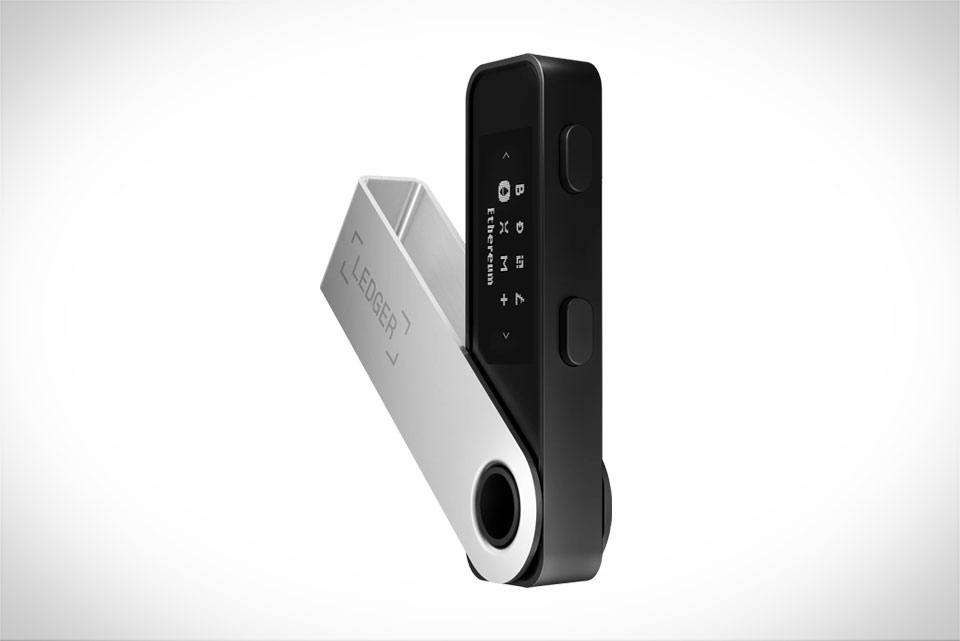
Before you can start staking, you need to make sure your Ledger setup is up to par—this small step saved me from a frustrating mistake earlier this year. First, update your Ledger device to the latest firmware; I once tried staking Cardano (ADA) with an old Ledger Nano S, and the staking option was grayed out entirely, so I had to reset and update everything. Next, link your Ledger hardware wallet to the Ledger Live app (desktop or mobile), and ensure your chosen crypto is stored in your Ledger wallet (not a centralized exchange, since Ledger staking keeps control of your keys, which is a big plus for security). Head to the “My Ledger” section in Ledger Live and enable the staking apps for the coins you want to use—for example, if you plan to stake Polkadot (DOT), toggle on the DOT staking app to unlock that feature. This prep takes less than 10 minutes, and it’s essential to avoid roadblocks during the staking process.
Choosing the Right Crypto to Stake in Ledger Live
Ledger Live supports a range of Proof-of-Stake (PoS) coins, so pick one that fits your goals. I went with ADA last quarter because it’s low-risk and has a straightforward staking process, with a current annual reward rate of around 5%. DOT is another popular pick, offering higher rewards (about 12% APY) but requiring a minimum of 1 DOT and a bit more attention to validators. The key here is to stick to coins Ledger vets—they only include validators with strong track records to minimize slashing, which is when you lose coins for validator misconduct. Avoid coins with APYs over 15% most of the time, as these often have long lock-up periods (some up to a year) or higher risks of slashing. For beginners, ADA is ideal because it has no minimum staking amount (you can stake even 1 ADA) and the unbonding period is just 5 days, so you can access your coins quickly if needed.
The Staking Process in Ledger Live
Once your setup is ready, the staking steps are simple. Open Ledger Live, connect your Ledger device, and unlock it. On the left sidebar, click “Stake”—if you don’t see this option, double-check that you enabled the relevant staking app earlier. Select your coin (say, ADA), then click “Start Staking”. Ledger Live will show you a list of pre-vetted validators; it picks a top one by default, but you can switch to another if you prefer. Next, enter the amount you want to stake—remember the minimum if applicable, like 1 ADA. Review the transaction fees (they’re always transparent here, no hidden costs) and confirm the request on your Ledger device by pressing the physical buttons. I did this for 5 ADA last month, and the transaction processed in under 4 minutes, which was way faster than I anticipated. After confirmation, your staked coins will appear under “Staked Assets” in Ledger Live.
Tracking Rewards and Adjusting Your Stake
After staking, you don’t have to do much to earn rewards—Ledger Live handles the rest automatically. For ADA, my rewards are added every Monday, either to my staked balance or my liquid balance (I chose automatic re-staking to grow my balance faster). To track your rewards, go back to the “Stake” tab; you’ll see a clear history of incoming rewards and your total staked amount. If you need to adjust your stake, like unstaking some coins, you can request an unstake at any time. Keep in mind most PoS coins have an unbonding period—5 days for ADA, 28 days for DOT—so your coins will be liquid again after that window. Last week, I unstaked 2 ADA to cover a small expense, and the coins were available in my wallet exactly 5 days later. Ledger Live also alerts you if a validator’s performance drops, so you can switch validators to protect your rewards if needed. This flexibility makes staking on Ledger great for both beginners and those who want to manage their crypto actively.







