
A practical guide for seamless Bluetooth pairing
Pre-Pairing Checks to Avoid Headaches
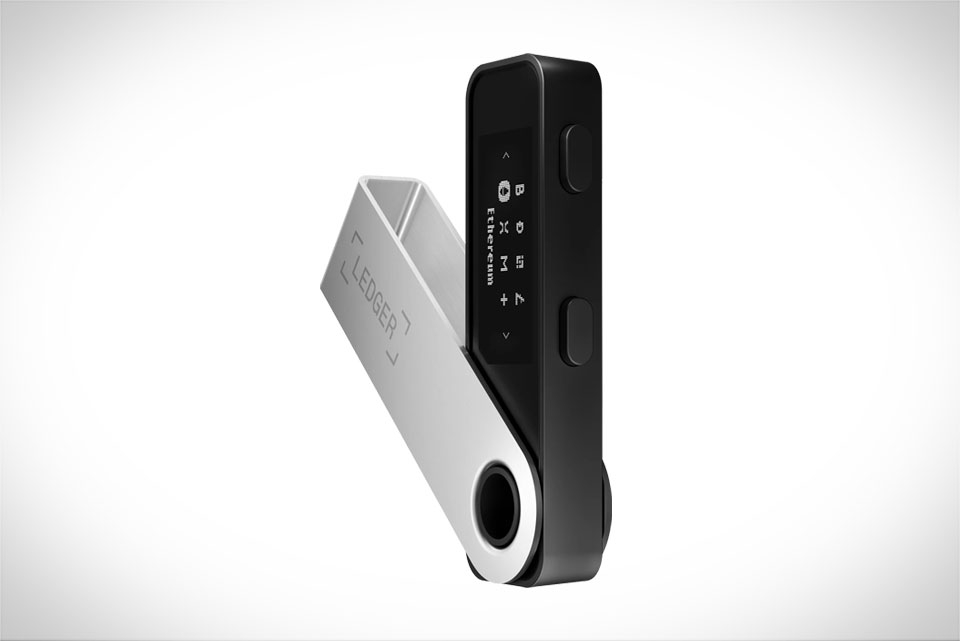
Before you start pairing, a few quick checks can save you from frustrating delays. First, confirm your Ledger Nano X has at least 20% battery—low power often causes pairing interruptions mid-process, and it can even make the Ledger freeze, forcing a full restart. Second, ensure your mobile device meets the minimum system requirements: Android 8.0 or later, iOS 13.0 or later. Older versions may lack compatible Bluetooth modules for Ledger’s software, leading to unrecognizable signals. Third, close any other active Bluetooth devices on your phone, like wireless headphones or smartwatches, as they create signal interference that blocks the Ledger’s broadcast. I learned this the hard way last month when my friend’s iPhone 14 failed to detect the Ledger until we disconnected his Apple Watch. Finally, update your Ledger Nano X’s firmware via Ledger Live on a computer—outdated firmware is a top reason for Bluetooth pairing errors, and a quick update fixes most basic glitches.
Setting Up Your Ledger Nano X for Bluetooth Pairing
Once pre-checks are done, prepare your Ledger device carefully. Unlock the Nano X by entering your PIN code using the physical left and right navigation buttons. Scroll through the menu to select “Settings” by pressing both buttons simultaneously, then navigate to the “Bluetooth” option and select it. Next, find and tap “Pair New Device”—this is critical; do not select any already paired devices here, as that will prevent the Ledger from broadcasting its signal for new connections. After choosing “Pair New Device,” the Ledger’s Bluetooth indicator will start flashing, and a unique 6-digit pairing code will appear on its screen. Many users accidentally pick the wrong menu here, so take a second to confirm you’re on the “Pair New Device” screen before moving on.
Pairing with Your Mobile Device
The process differs slightly between Android and iOS, but both are straightforward. For Android users: Open the latest version of the Ledger Live app, tap the small device icon in the top-right corner, then select “Connect New Device.” Choose “Bluetooth” from the connection options, and the app will scan for nearby Ledger devices. When your Nano X’s name pops up, tap it, then enter the 6-digit code shown on your Ledger into the app. Confirm the code matches on both screens, and you’re connected. For iOS users: First, go to Settings > Bluetooth on your iPhone, turn it on, wait for “Ledger Nano X” to appear in the device list, then tap it to start pairing. You’ll see the same 6-digit code on both your Ledger and iPhone—confirm they match, then return to Ledger Live, tap your paired Ledger, and hit “Connect.” Last week, I helped my mom pair her Samsung S23, and she initially forgot to turn on system Bluetooth; a quick reminder fixed the issue in 30 seconds.
Fixing Common Bluetooth Pairing Issues
Even with careful steps, you might hit snags. If your phone can’t find the Ledger, double-check that the Ledger is unlocked, its Bluetooth is active, and your phone’s Bluetooth is on. For iOS users, also make sure Location Services are enabled—Apple’s system requires this for Bluetooth device discovery, even if it seems unrelated to location tracking. If the pairing code doesn’t match, close Ledger Live, restart both your Ledger and phone, then redo the setup steps. If the connection drops after pairing, check your Ledger’s battery level again, or disconnect other nearby Bluetooth devices that might be interfering. In rare cases, uninstalling and reinstalling Ledger Live can resolve persistent glitches; this worked for my colleague who struggled to pair his OnePlus 9 for weeks until he did a fresh install.







