
Protect your Solana assets with Ledger hardware wallets
Choosing the Right Ledger Device for Solana
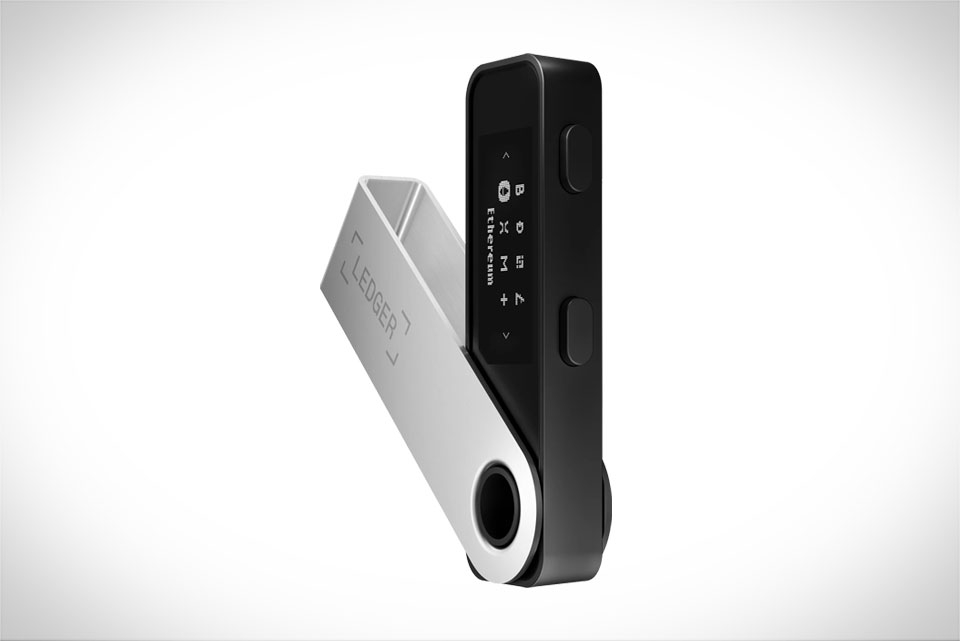
When storing Solana’s native SOL and SPL tokens, Ledger offers two main hardware wallets tailored to different user needs. The Ledger Nano S is a compact, budget-friendly option ideal for beginners who only need basic storage and occasional transactions. It connects via USB, is easy to set up, and supports all Solana-related apps. For more active Solana users—like those who frequently interact with DeFi protocols, NFT marketplaces, or staking platforms—the Ledger Nano X is a better pick. It has Bluetooth connectivity, allowing pairing with your phone for on-the-go access, and stores more apps at once, so you don’t have to uninstall one to use another. Many new Solana users I’ve worked with started with the Nano S to learn the ropes, then upgraded to the Nano X once their asset holdings grew.
Setting Up Your Ledger for Solana Integration
Before storing Solana tokens, you need to properly integrate your Ledger with Solana. Start by downloading the official Ledger Live app from Ledger’s website—never use third-party sources, as they can carry malicious code. Once installed, connect your Ledger to your computer or phone, unlock it with your PIN, and navigate to the app store on Ledger Live. Search for the Solana app and install it on your Ledger. Wait for the installation to complete, then open the Solana app on your device. Some users rush this step and skip waiting for the app to sync, leading to connection errors when sending or receiving tokens. I once had a friend who tried to send SOL before the app was ready, and the transaction failed; waiting 2 minutes fixed the issue entirely.
Storing SOL and SPL Tokens Safely on Ledger
Storing SOL is straightforward: once your Solana app is active on Ledger, copy your unique Solana address from Ledger Live and use it to transfer SOL from an exchange or another wallet. For SPL tokens, the process requires an extra step to ensure they appear in your Ledger balance. Most common SPL tokens (like USDC, RAY, or SRM) are already listed in Ledger Live, but if you’re dealing with a less popular token, you’ll need to manually add it by inputting its official Solana contract address. For example, when I first stored RAY tokens, I couldn’t find them in Ledger Live’s default list, so I looked up RAY’s official contract address from its website and added it manually. Always double-check the contract address to avoid adding a fake token that could drain your funds. When transferring any token, confirm the Solana address on your Ledger device’s screen matches the one in Ledger Live—never trust the app alone, as phishing attempts can alter the address shown on your computer.
Best Practices to Keep Your Solana Assets Secure
Even with Ledger, following strict security practices is non-negotiable. First, never connect your Ledger to public Wi-Fi or untrusted devices; use a secure, private network. Write down your 24-word recovery phrase on a physical piece of paper and store it in a safe, offline location—like a home safe or a bank deposit box—never store it digitally on your phone or computer. I know a user who saved their recovery phrase in a cloud document, and when their account was hacked, the attacker accessed the phrase and stole all their SOL. Second, always verify transaction details directly on your Ledger device before signing. The device will display the recipient address and amount, so compare that to what’s on Ledger Live to avoid fake transactions. Finally, regularly update your Ledger’s firmware and the Solana app to patch security vulnerabilities. Ledger releases updates to fix potential gaps, so ignoring these updates puts your assets at risk.







