
A Practical Guide to Refresh Your Ledger Wallet and Fix App Glitches
Pre-Uninstall Prep: Key Checks Before You Start
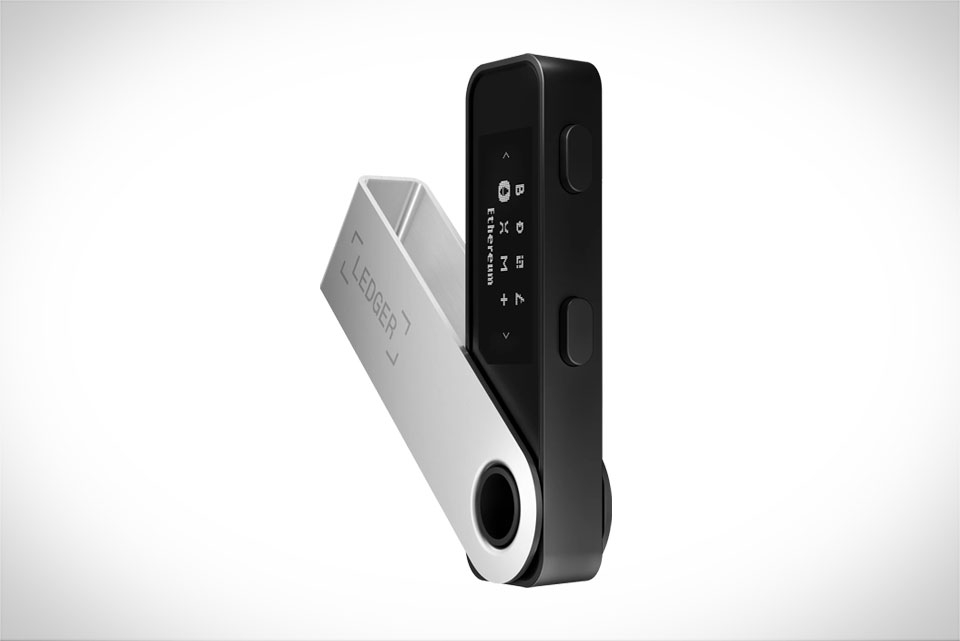
Before you jump into uninstalling any Ledger crypto app, take two quick steps to avoid avoidable headaches later. First, double-check your Ledger recovery phrase is stored in a secure, offline place—this is non-negotiable, even if you think you’ll never need it. I learned this the hard way last year when I accidentally uninstalled my Ethereum app without verifying, but since I had the 24-word phrase tucked in a fireproof safe, I was able to restore everything in 10 minutes. Second, make sure both your Ledger hardware device and Ledger Live desktop app are updated to the latest firmware and software versions. Outdated tools often cause glitches during uninstall or reinstall. For example, a friend of mine tried uninstalling his Cardano app on an old Ledger Live version and ended up with a corrupted app entry in his device’s storage, which forced him to do a factory reset and re-enter his entire recovery phrase.
How to Uninstall Crypto Apps from Your Ledger
Uninstalling apps from Ledger is straightforward, but follow these exact steps to prevent stuck or partial removals. Start by connecting your Ledger device to your computer via USB cable—avoid Bluetooth for this process if possible, as it’s less stable during data transfers. Unlock the device with your PIN code, then open Ledger Live and navigate to the “My Ledger” tab on the left sidebar. You’ll see a full list of all installed apps on your device, sorted alphabetically. Find the app you want to remove—say, the Polkadot app I rarely use since moving most of my DOT to a Ledger Nano S Plus—and click the three-dot menu icon next to it. Select “Uninstall” from the dropdown. Now look at your Ledger device screen: it will show a confirmation prompt with the app name. Press both physical buttons (or follow the on-screen taps for Nano X models) to confirm the uninstall. Wait until Ledger Live updates the list to show the app is gone. Don’t disconnect the device mid-process; I made this mistake once when uninstalling Solana, and the app remained stuck in a “pending removal” state for a whole day until I restarted Ledger Live and tried again.
Common Reasons to Reinstall Ledger Crypto Apps
Reinstalling apps isn’t just for fixing mistakes—it’s a useful maintenance step for several practical scenarios. First, persistent app glitches: about a month ago, my Ledger Solana app started throwing “sync failed” errors every time I tried to view my balance or send a small transaction. The official Ledger support forum had dozens of similar reports from users with older app versions, and reinstalling the app fixed it immediately. Second, accessing new features: crypto apps get regular updates to add functionality like Taproot support for Bitcoin or staking tools for Cardano. If you’ve been ignoring app updates, reinstalling ensures you have the latest version instead of an outdated one that might not work with new network rules. Third, freeing up storage: Ledger devices have limited internal space (around 100MB for most models), so uninstalling unused apps and reinstalling only what you need keeps your device running faster. I used to have 17 apps installed but only actively used 5, so removing the rest and reinstalling as needed cut down on app load times by almost 30%.
Step-by-Step Reinstallation for Smooth Functioning
Reinstalling an app is almost as easy as uninstalling it, but here’s how to do it right to avoid issues. Stay in the “My Ledger” tab in Ledger Live, then click the “Add App” button at the top of the screen. Search for the app you want—for example, I recently reinstalled the Cardano app after my earlier sync hiccup—and select it from the search results. Click “Install” next to the app name. You’ll need to confirm the action directly on your Ledger device: the screen will show the app name and a prompt to approve the installation. Press the device buttons to confirm, then wait for Ledger Live to complete the transfer. Once it’s done, the app will appear in your “My Ledger” list. Open it on your Ledger device, enter your PIN, and check that your balance and recent transactions show up correctly. If you run into sync delays, wait 2-3 minutes—sometimes it takes a little extra time to connect to the network, especially for less popular cryptos. Avoid rushing to send large funds right away; test with a small, nominal amount to make sure everything works as expected before moving bigger sums.







