
Quick guide to resolve common Ledger sync glitches
Why Cached Data Triggers Sync Errors
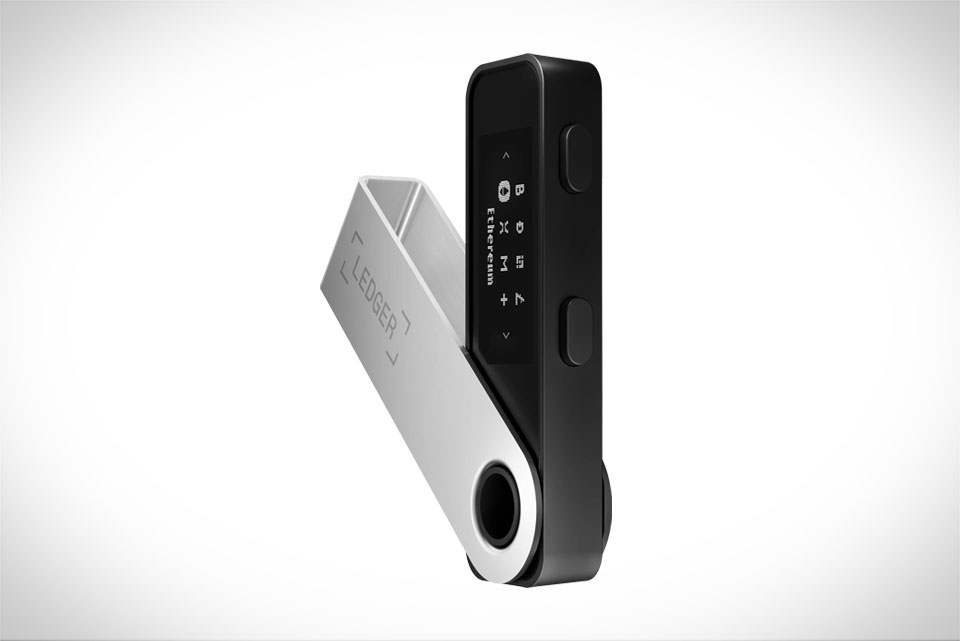
Cached data in Ledger Live acts like a temporary shortcut for frequently accessed blockchain details, such as recent transaction records, token balance snapshots, and block header information. This is meant to make the app load faster when you check your portfolio or send funds. However, if this cached data becomes corrupted—usually from an interrupted sync, a sudden app crash, or a failed software update—it creates a mismatch between what the app thinks it knows and the actual latest blockchain data. Take Bob, a casual crypto investor who uses Ledger to manage his Ethereum and Litecoin: he noticed his app was stuck at syncing block 1,200,000 for three days, with no progress bar movement or error messages beyond a generic “sync failed” alert. A quick check of Ledger’s support forums revealed his corrupted cache was the root cause, as he’d closed the app mid-update a week prior.
Clearing Cache on Desktop Ledger Live
Clearing the cache on desktop Ledger Live is straightforward, but you need to fully shut down the app first—closing the window isn’t enough, as background processes can keep the cache files locked. For Windows users, press Ctrl+Shift+Esc to open Task Manager, scroll to find all entries labeled Ledger Live, and select “End Task” for each. On Mac, open Spotlight (press Command+Space), type Activity Monitor, search for Ledger Live in the search bar, and click the “X” icon at the top to force quit. Next, navigate to the cache folder: Windows path is C:\Users\[Your Username]\AppData\Roaming\Ledger Live\Cache; Mac is ~/Library/Application Support/Ledger Live/Cache; Linux users will find it at ~/.config/Ledger Live/Cache. Delete every file inside the Cache folder (don’t delete the parent Ledger Live folder), then restart the app. Alice, a freelance crypto trader, followed these steps after spending two days troubleshooting sync timeouts and her app was fully synced with the latest blockchain data within 10 minutes.
Mobile Ledger Live Cache Clearing Steps
Mobile users have slightly different cache clearing methods, depending on their device. For Android, go to your phone’s Settings, tap Apps or Applications, find Ledger Live in the list, select Storage, then tap “Clear Cache” (never tap “Clear Data” unless you have your 24-word recovery phrase backed up—this will erase all saved account info and require re-entry). For iOS, Apple doesn’t offer a direct “clear cache” button for third-party apps, so two safe options work: offload the app (Settings > General > iPhone Storage > Ledger Live > Offload App) which removes temporary files but keeps your account data, or delete and reinstall the app after confirming your recovery phrase is secure. Mike, an Android user who noticed his Polygon and Solana tokens were missing during sync attempts, cleared his cache and saw his entire portfolio update with all token balances within seconds.
Preventing Future Sync Problems
To avoid repeating sync errors after clearing your cache, adopt a few simple habits. First, update Ledger Live whenever a new version is available—developers regularly fix sync bugs and connectivity issues that can lead to corrupted cache. Second, use stable internet connections; public Wi-Fi or overcrowded VPNs can disrupt blockchain data transfer, leading to partial syncs that cause cache problems. Third, stick to Ledger’s official blockchain nodes (you can adjust this in Settings > Developer > Node selection) instead of third-party nodes that might be outdated. Finally, clear your cache every 1 to 2 months, even if you don’t have sync issues—this keeps your app running smoothly and prevents old data from building up. Luna, a long-time Ledger user, started doing this after her sync problems and hasn’t experienced a stuck sync or corrupted cache in six months, making her crypto management much more reliable.







